|
|
 |
|
|
|
 |
||
|
a |
||
|
|
|||||||||||||
|
|
|||||||||||||||||||||||||||||||
|
|
|
To download the instructions to your computer click HERE |
|
|
|
"How to setup a Dial-Up connection in XP...” |
|
|
|
|
|
|
|
|
|
|
|
|
|
|
|
|
|
|
|
|
|
|
|
|
|
|
|
|
|
|
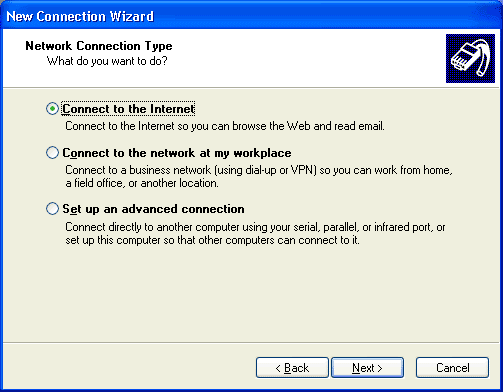
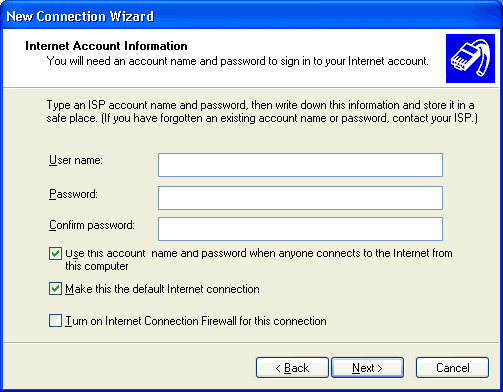
To setup a dial-up connection to the Internet on a computer equipped with the Microsoft Windows XP Operating System, please follow these steps... |
|||||||||||||||||||||||||||||
 |
|||||||||||||||||||||||||||||
|
|||||||||||||||||||||||||||||
 |
|||||||||||||||||||||||||||||
 |
|||||||||||||||||||||||||||||
|
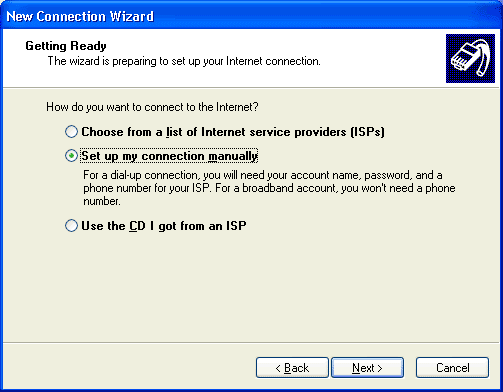
Select Set up my connection manually. |
|||||||||||||||||||||||||||||
 |
|||||||||||||||||||||||||||||
|
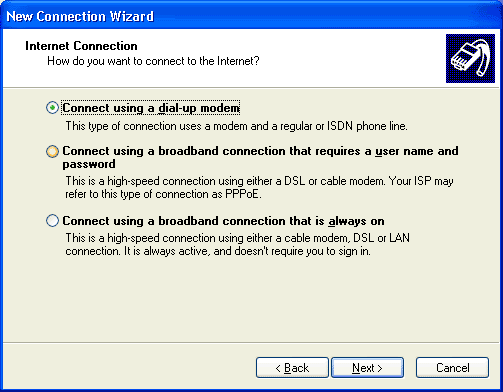
Select Connect using a dial-up modem. Then click on Next to continue. |
|||||||||||||||||||||||||||||
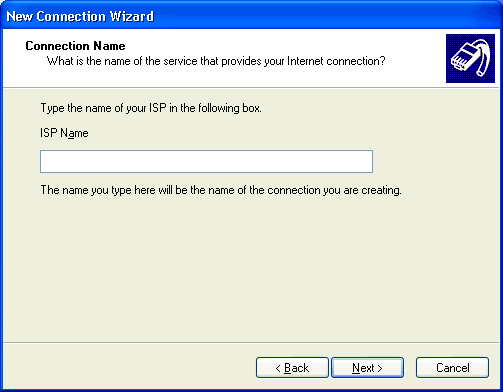 |
|||||||||||||||||||||||||||||
|
|||||||||||||||||||||||||||||
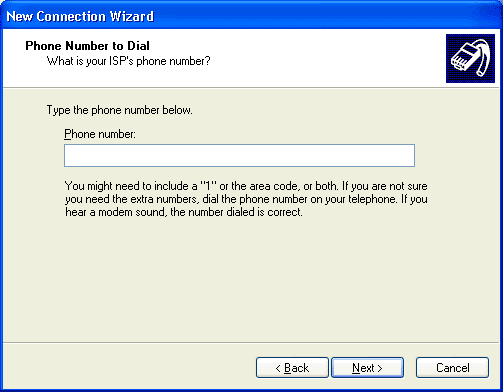 |
|||||||||||||||||||||||||||||
|
|||||||||||||||||||||||||||||
 |
|||||||||||||||||||||||||||||
|
Type in your User Name. User names on our system consist of a prefix string, a user ID string and a suffix string.
|
|||||||||||||||||||||||||||||
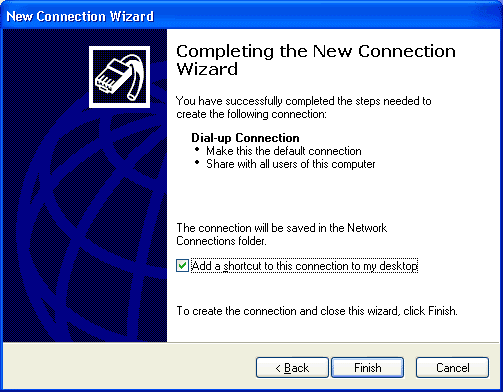 |
|||||||||||||||||||||||||||||
|
|
|||||||||||||||||||||||||||||
|
|
| [Home] [DSL] [Webhosting] |
|
|
|
All contents of this site are copyright 1470368 Ontario Inc. (2010) |